How ShopiQ works
Most online shops give you a search box and a wall of filters, and leave the judgement to you. ShopiQ is built the other way round: you say what you need in your own words, and it does the narrowing, the comparing and the checking out — showing its reasoning at every step, and asking before it spends your money.
The idea
Shopping by conversation
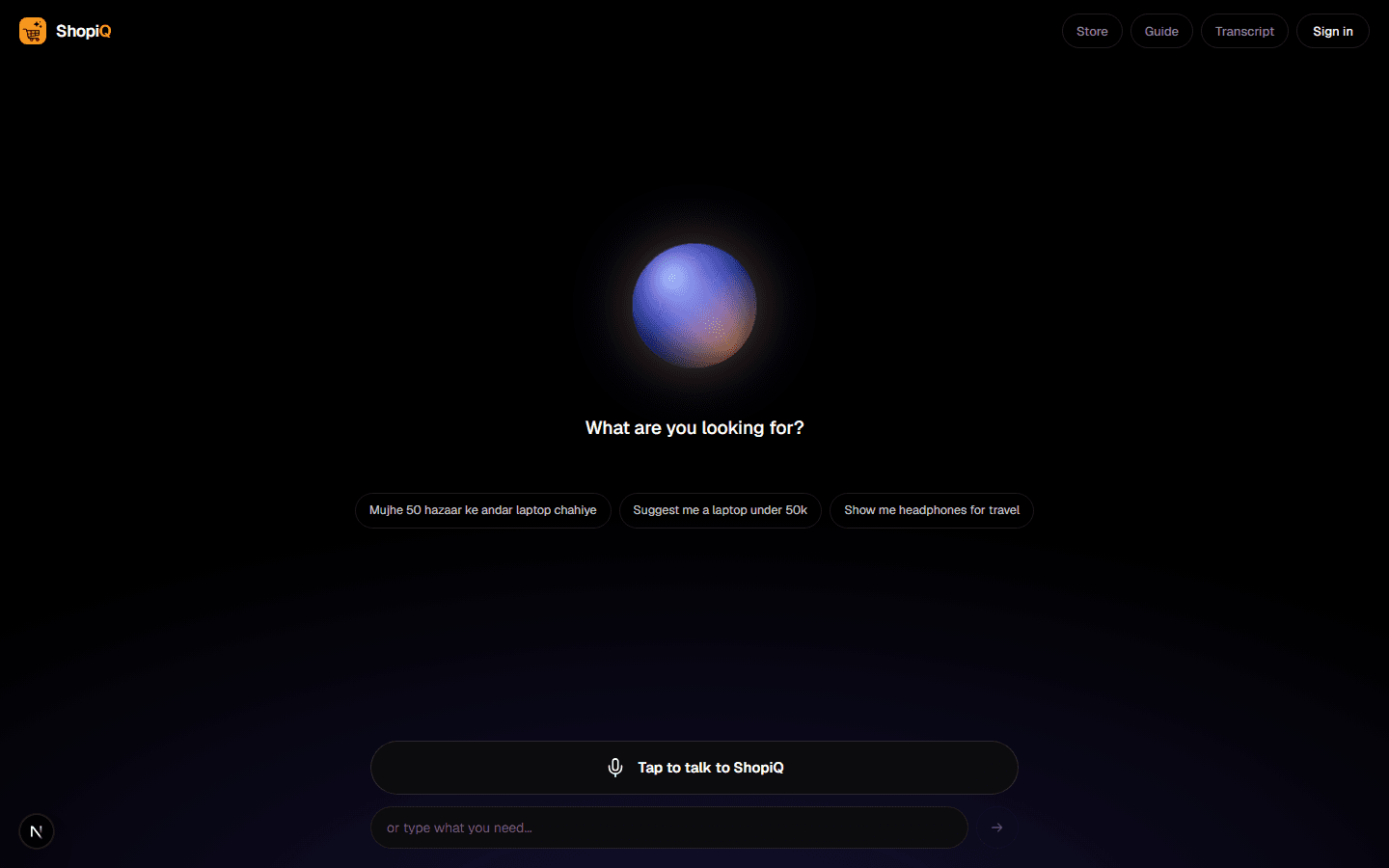
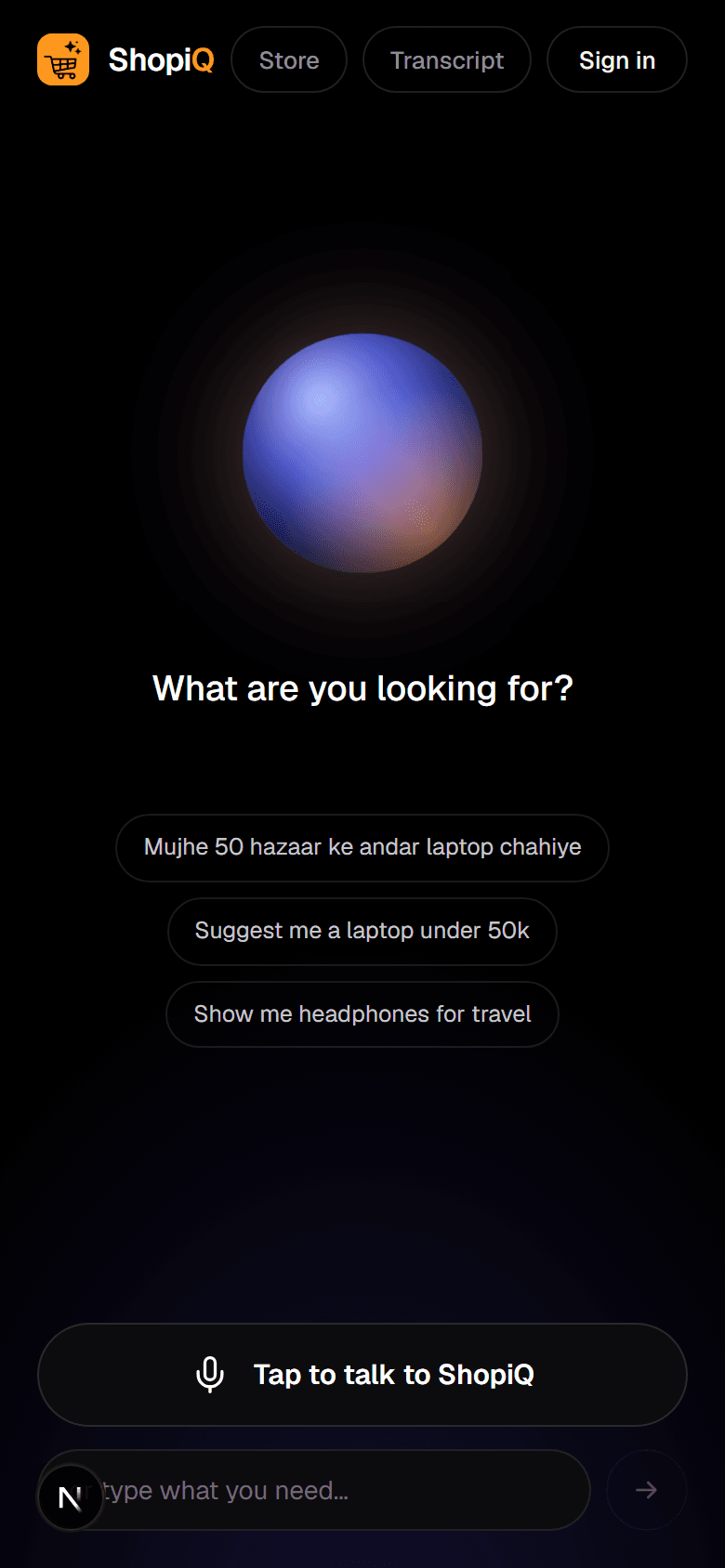
ShopiQ's front door is not a product grid. It is something that listens. You arrive, say what you are after, and it goes and looks — the same way you would ask a person behind a counter.
The important part is what happens underneath. The AI reads your words and writes the replies, but it never decides what you are shown. Searching, filtering, ranking, pricing and stock are all settled by ShopiQ against the live catalogue, and the AI is handed the finished list to explain. That is why it can tell you honestly that it has nothing for you instead of offering the nearest thing and hoping.
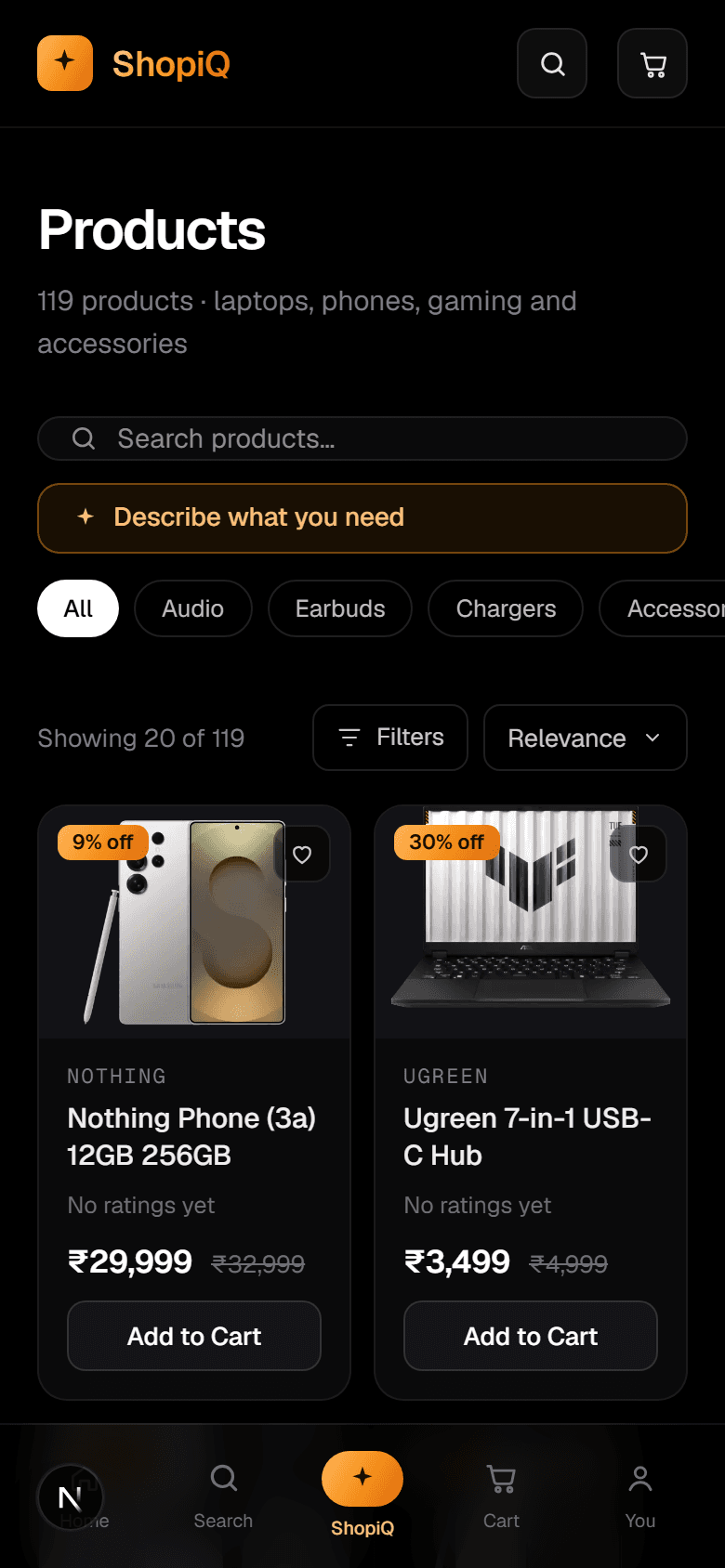
The catalogue is still there if you would rather browse. The store works exactly as you expect, and the assistant is one tap away on every page.
Step one
Talking to it
Voice or text
Tap “Tap to talk to ShopiQ” and speak, or type in the box below it. Both go to the same place, and you can switch mid-conversation.
English, Hindi or Hinglish
Ask in Hindi and it answers in Hindi. “Mujhe 50 hazaar ke andar laptop chahiye” works exactly as well as the English version.
It remembers
You can say “the second one”, “the cheaper one”, or “add that charger” and it knows what you mean from what it just showed you.
Say as much or as little as you like. “a laptop” is enough to start — it will ask what you will use it for and roughly what you want to spend. “a laptop for programming and gaming under ₹80,000” gets you straight to a shortlist.
Step two
Finding something
Say what it is for, not what it is called
You do not need to know the model. Describe the job — editing video, a first phone for a parent, something for a long flight — and the requirements are worked out from that.
Every result says why it is there
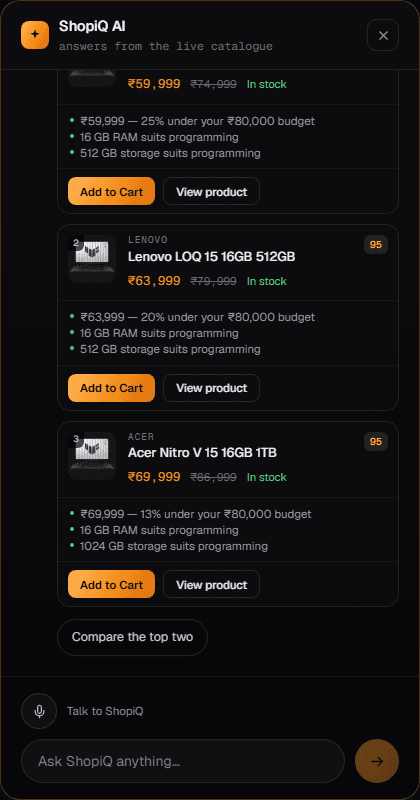
Each card carries the reasons it matched: how it sits against your budget, which specifications answered your requirements, and anything worth knowing before you buy. A drawback stated plainly is more useful than a product oversold.
Narrow it by saying so
“cheaper”, “something lighter”, “only Samsung”, “compare the top two”. Each one refines the search you already have rather than starting a new one.
An honest “no”
Ask for a gaming laptop under ₹20,000 and it will tell you there isn't one, rather than showing you a ₹60,000 machine and letting you notice the price yourself.
Step three
Why it suggests what it does
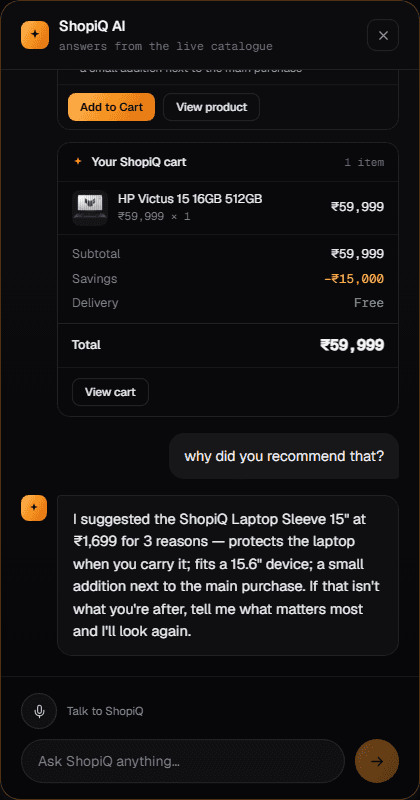
Add something and ShopiQ will offer what genuinely goes with it — a case that fits your phone, a sleeve sized for your laptop, a television the console can actually drive. Compatibility is checked against the catalogue, so an accessory made for another brand is never offered, even when it would otherwise rank well.
If you want to know why, ask: “why did you recommend that?” The answer comes from the reasons recorded when the choice was made — not from the assistant reconstructing a justification afterwards. If the reasoning does not match what you care about, say so and it will look again.
Anything already in your cart is never suggested again, and every suggestion has an Add to Cart button, so accepting one is a single tap.
Step four
Your cart
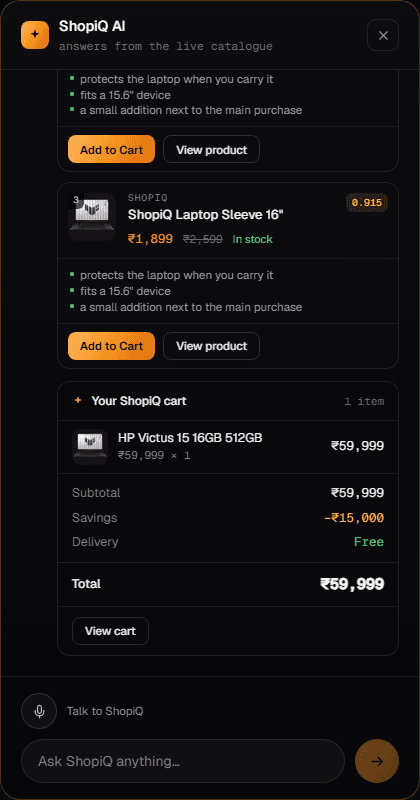
The assistant's cart and the website's cart are the same cart. Add something by talking, and it is there on the cart page and in the header count.
- “make it two” or “remove the sleeve” — quantities and removals by conversation.
- “what's my total?” — the itemised total, including delivery.
- “clear my cart” — asked to confirm first, because it cannot be undone.
If a product goes out of stock or changes price while it is sitting in your cart, you are told before checkout rather than at it.
Step five
Placing an order
Say “I'm ready to buy” and ShopiQ walks the rest. Nothing is charged until you approve an exact figure, and the figure you approve is the figure that is charged.
It signs you in first
If you are not signed in, it asks for your email and sends a six-digit code — no password to remember. This happens before payment so the order has an owner from the moment it exists, and you can find it again afterwards.
It confirms where it is going
Your saved addresses are listed to choose from, or you can add a new one. Nothing is quoted until it knows where it ships — an order that is paid for and going nowhere helps nobody.
You approve an exact total
A checkout card appears with the items, the delivery charge and the total. That amount is what gets sent to the payment provider. The AI cannot alter it — it is calculated and held by ShopiQ.
You pay through Razorpay
Card details are entered in Razorpay's own window. ShopiQ never sees your card number, and the payment is verified on the server before an order is created. If a payment fails you can retry — a successful retry still produces exactly one order.
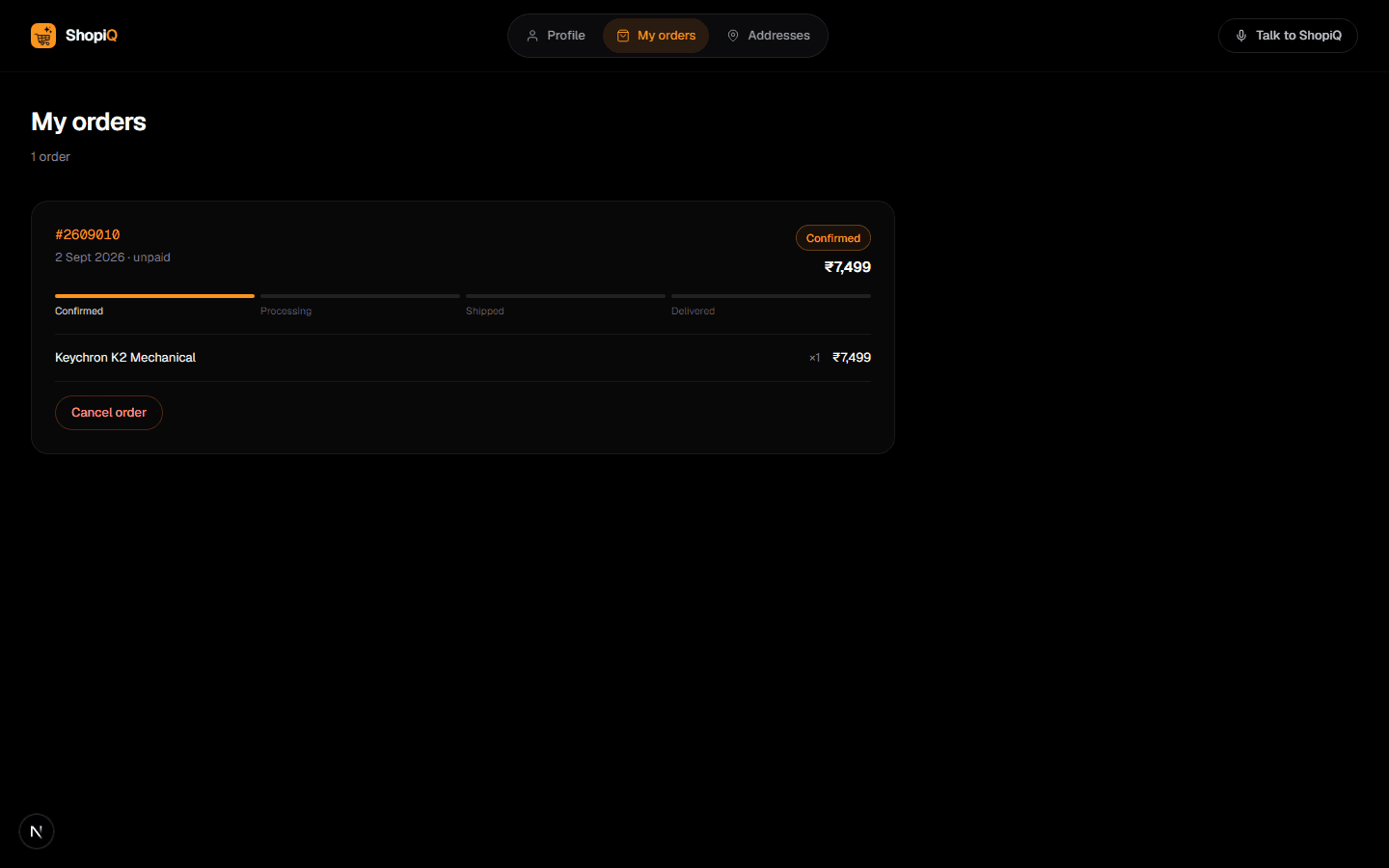
Your order number. Confirmed orders get a short reference like #2609010 — the year, the month, and its place in that month. Short enough to read out over the phone, and enough for ShopiQ to find the order.
Afterwards
Managing an order
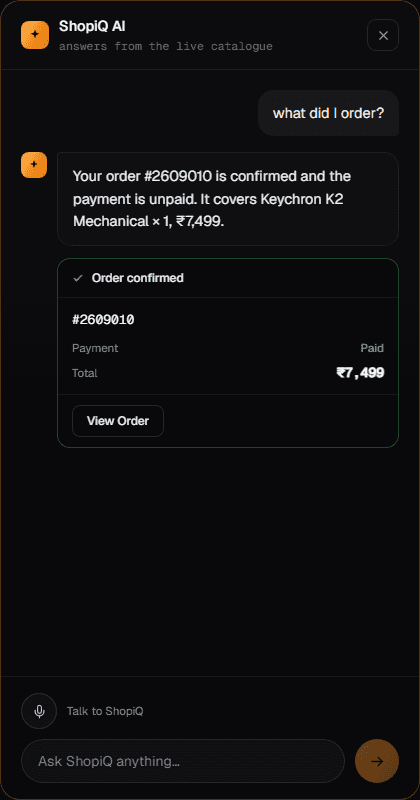
You never have to hunt for an order form. Ask, and ShopiQ answers about your own orders — it can only ever see yours, because it reads your account from your signed-in session rather than from anything you type.
- “what did I order?” — your recent orders, itemised.
- “where is my order?” — status and payment state.
- “cancel my order” — if more than one could be meant, it asks which, and remembers the answer.
- “I want to return this” — starts a return or replacement request.
It works the other way too. Everything the assistant can do is on the account pages as a form and a list, because dictating a PIN code is worse than typing it.
Worth knowing
What it will not do
An assistant that can spend your money has to be built so that it can't do so on its own. These are guarantees enforced by the system, not instructions the AI is asked to follow.
It never sets a price
Prices, discounts, delivery and totals are read from the catalogue and calculated by ShopiQ. The AI is told the numbers; it cannot change them.
It never charges you unasked
Payment needs your explicit approval of an exact amount, and that approval is checked again on the server before anything is taken.
It never invents a product
It can only show what is in the catalogue. Ask for something not stocked and it says so plainly.
It only sees your account
Your identity comes from your signed-in session. Naming someone else’s email or order number does not grant access to it.
It confirms before destroying
Clearing a cart or cancelling an order is asked about first, and a vague answer is treated as “no”.
It admits what it does not know
If a rating, a specification or a stock figure is not recorded, it tells you that instead of filling the gap.
Anywhere
On a phone
ShopiQ is built for a phone first — which is where talking to a shop makes the most sense. The assistant fills the screen, the microphone is under your thumb, and the bottom bar carries the same entry point the desktop header does.
Everything in this guide works identically on both. The conversation follows your account, so you can start on a laptop and finish on a phone with the cart intact.
Try it with something you actually need
It works best when you talk to it the way you would talk to a person — the budget, the use, and the thing you are worried about getting wrong.